
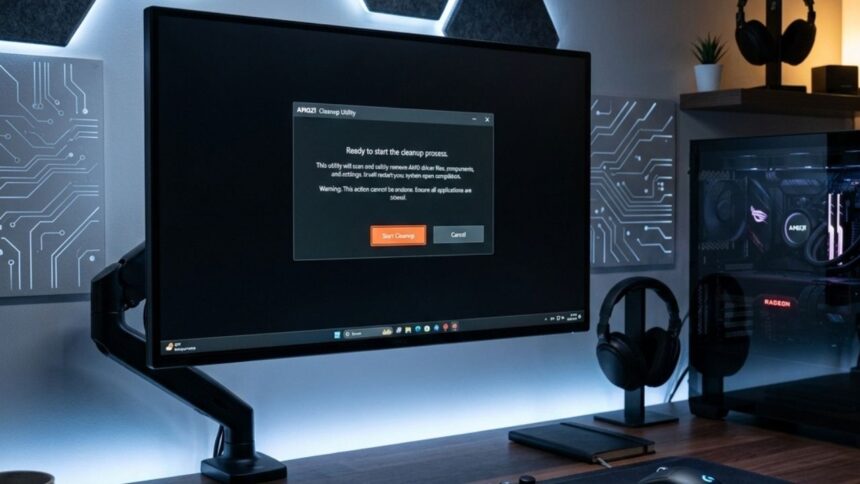
The Amd cleanup utility is a free, official software tool designed to completely remove existing or corrupted AMD drivers, registry entries, and files from a Windows system. This tool prepares your PC for a clean AMD driver installation, helping resolve display issues, poor gaming performance, and persistent installation errors.
When your computer’s graphics card starts acting up, the experience can be incredibly frustrating. You might encounter random black screens during gameplay, severe stuttering in your favorite applications, or mysterious error messages popping up when you try to update your system. Often, these issues stem from leftover files, corrupted registry keys, or incomplete installations of your graphics drivers. Standard uninstallation methods through the Windows Control Panel frequently leave fragments behind, which can conflict with new driver updates.
This is exactly where the AMD Cleanup Utility comes into play. As a dedicated tool provided directly by the manufacturer, it ensures your system is completely purged of old AMD software. By establishing a blank slate, you can perform a clean AMD driver installation and restore your computer to peak performance. This comprehensive guide will walk you through exactly what this tool does, why you need it, and how to use it safely and effectively.
What is the AMD Cleanup Utility and what does it do?
The AMD Cleanup Utility is a standalone software application developed and distributed by Advanced Micro Devices (AMD). Its primary official purpose is to thoroughly eradicate all installed AMD driver files, associated applications, and leftover registry entries from a system running Microsoft Windows.
When you install graphics drivers, the software weaves itself deeply into the Windows operating system. It creates folders in various directories, modifies the Windows Registry to ensure the operating system knows how to communicate with the hardware, and installs supplementary programs like the AMD Radeon Software or AMD Adrenalin Edition. If you simply click “Uninstall” in the standard Windows settings, many of these deep-rooted files remain untouched. The Amd cleanup utility forcefully and safely removes these stubborn remnants.
Which AMD products does the utility support?
The tool is highly versatile within the manufacturer’s ecosystem. It supports a wide range of hardware, including:
- AMD Radeon desktop graphics cards
- AMD Radeon mobile graphics (laptop GPUs)
- AMD Ryzen processors with integrated Radeon graphics
- AMD audio drivers are associated with display outputs
It is designed specifically for systems running Windows 7, Windows 8.1, Windows 10, and Windows 11. It does not support Linux or macOS operating systems.
Why should you use the AMD Cleanup Utility for driver removal?
You might wonder why you should go through the extra step of using a specialized tool instead of relying on the built-in Windows uninstaller. Utilizing the Amd cleanup utility provides several distinct advantages that directly impact system stability and performance.
How does the utility fix driver installation issues?
One of the most common problems PC users face is a failed driver update. You might download the latest AMD Adrenalin software, run the installer, and receive an “Error 1603” or a message stating the installation cannot proceed. This usually happens because the installer detects conflicting files from a previous version. By running an AMD driver removal process with this utility, you eliminate those conflicts, allowing the new installer to operate without interference.
Can it resolve GPU-related performance problems?
Over time, driver files can become corrupted due to unexpected system shutdowns, malware, or conflicting Windows updates. Corrupted graphic drivers manifest as visual artifacts, screen flickering, or system crashes when launching heavy applications. Purging the corrupted data with the Amd cleanup utility allows you to reinstall the software correctly, which frequently resolves these performance anomalies.
Why is preparing for a clean AMD driver installation important?
A clean installation is the gold standard for PC maintenance. When upgrading to a brand new AMD graphics card, or even just updating to a major new software release, a clean slate ensures the hardware and software communicate optimally. Leftover files from an older driver version can force the new driver to behave erratically. The cleanup utility guarantees that your new drivers will not inherit the problems of the old ones.
What are the key features of the AMD Cleanup Utility?
The tool is straightforward, but it packs several powerful features that make it the preferred choice for troubleshooting AMD hardware.
Does it provide complete driver removal?
Yes, the utility is programmed to target the exact file paths and registry keys that AMD installers create. It searches the standard C:\Program Files\AMD directories, the hidden AppData folders, and the intricate webs of the Windows Registry to ensure nothing is left behind.
Is the interface easy to use for beginners?
Unlike some third-party troubleshooting tools that feature overwhelming menus and complex configuration options, the AMD Cleanup Utility is incredibly user-friendly. It operates primarily through simple dialogue boxes that ask for basic confirmation (e.g., “Yes” or “No”). You do not need an advanced computer science degree to navigate it successfully.
Why does it use Windows Safe Mode?
When the utility launches, it actively prompts the user to reboot the computer into Windows Safe Mode. Safe Mode is a diagnostic state of Windows that loads only the absolute minimum drivers and services required for the operating system to function. This is critical for AMD graphics driver cleanup because standard Windows often “locks” driver files that are currently in use, preventing their deletion. Operating in Safe Mode bypasses these file locks.
How do you download the AMD Cleanup Utility safely?
Acquiring the software correctly is vital for the security of your computer. You should always obtain system-level tools directly from the manufacturer to avoid malware or unwanted bundled software.
Where is the official AMD website download located?
To download the tool, navigate directly to AMD.com and access their “Drivers and Support” section. Alternatively, you can search for “Amd cleanup utility” in your preferred search engine, ensuring the link you click begins with https://www.amd.com.
What are the system requirements and precautions?
The utility requires Windows 7, 8.1, 10, or 11. Before downloading and running the tool, you should take a few standard precautions:
- Create a Windows System Restore point. While the tool is safe, having a backup allows you to revert your system if anything goes wrong.
- Ensure you have the latest AMD driver installation package already downloaded and saved to your desktop. Once the cleanup utility finishes, your PC will use basic Microsoft display drivers, and having the new installer ready saves time.
- Pause any active Windows Updates, as they can interfere with the removal process.
How to use the AMD Cleanup Utility (Step-by-Step Guide)
Using the tool is a relatively quick process. Follow these specific steps to ensure a flawless execution.
Step 1: Download the tool and close applications
First, download the executable file from the official AMD support page. Save it to an easily accessible location, such as your Desktop or Downloads folder. Before proceeding, close all open applications. Save any open documents, exit out of your web browser, and close any background programs like Discord, Steam, or antivirus software that might interfere.
Step 2: Launch the utility and enter Safe Mode
Double-click the AMDCleanupUtility.exe file. A prompt will appear stating that the utility is designed to remove AMD drivers and asking if you would like to reboot into Safe Mode. Click Yes. Your computer will automatically restart and boot into the Windows Safe Mode environment.
Step 3: Confirm the removal process
Once Windows loads in Safe Mode, the Amd cleanup utilitywill automatically launch a new dialogue box. It will warn you that it is about to remove all AMD drivers and application components. Click OK to begin the process. The tool will display a progress bar. Do not interrupt this process or turn off your computer while it is running. The screen may flicker or adjust resolution during this time; this is completely normal as the display drivers are uninstalled.
Step 4: Restart your PC
When the cleanup is finished, a final prompt will appear informing you that the process has completed successfully. It will ask you to reboot your system to finalize the changes. Click Yes. Your computer will restart and boot back into the normal Windows environment.
Step 5: Install fresh AMD drivers
Upon returning to normal Windows, you will notice your screen resolution might be lower than usual. Locate the new AMD driver installer package you downloaded earlier, run it, and follow the on-screen instructions to complete your clean AMD driver installation.
How does the AMD Cleanup Utility compare to DDU (Display Driver Uninstaller)?
When researching driver removal, you will inevitably encounter another popular tool: Display Driver Uninstaller (DDU). Both tools achieve similar goals, but they cater to slightly different needs. Choose the Amd cleanup utility if you want a fast, official, and straightforward solution. Choose DDU if you are switching hardware brands or need deeper customization.
| Feature | AMD Cleanup Utility | Display Driver Uninstaller (DDU) |
|---|---|---|
| Official Tool | Yes (Created by AMD) | No (Third-party community tool) |
| Easy for Beginners | Yes (Automated prompts) | Moderate (Requires manual configuration) |
| Removes AMD Drivers | Yes | Yes |
| Supports NVIDIA & Intel | No | Yes |
| Prevents Windows Auto-Update | No | Yes |
What are common issues and solutions when using the utility?
While generally reliable, you might encounter occasional hiccups during the cleanup process.
What if the utility is not launching?
If you double-click the executable and nothing happens, your Windows Defender or third-party antivirus software might be falsely flagging it. Temporarily disable your antivirus software, run the utility as an Administrator (by right-clicking the file and selecting “Run as administrator”), and try again.
What to do about Windows Safe Mode issues?
Occasionally, a PC might get stuck in a “Safe Mode loop” where it continues booting into Safe Mode even after the utility finishes. If this happens, press the Windows Key + R on your keyboard, type msconfig, and hit Enter. Navigate to the “Boot” tab, uncheck the “Safe boot” option, click Apply, and restart your computer.
What are the Pros and Cons of the AMD Cleanup Utility?
Understanding the strengths and limitations of the software helps set appropriate expectations.
Pros:
- It is an official software developed by the hardware manufacturer, ensuring high compatibility.
- It is completely free to use.
- The automated, prompt-based interface makes it virtually foolproof for casual PC users.
- It automatically handles the complex process of booting into Safe Mode.
Cons:
- It strictly only works with AMD-branded software. If you have NVIDIA files on your system, it will not touch them.
- It lacks advanced configuration options. Users cannot choose to keep specific profiles or settings while deleting others; it is an all-or-nothing removal.
Frequently Asked Questions (FAQ)
Is the AMD Cleanup Utility safe to use?
Yes, it is entirely safe when downloaded directly from the official AMD website. It is specifically engineered to target only AMD-related files and registry keys, meaning it will not delete your personal files, games, or critical Windows operating system components.
Does the utility remove AMD chipset drivers for Ryzen processors?
The utility is made to look at graphics and audio drivers. It does this by default.. Sometimes it will ask you about chipset drivers. This depends on what version you have and how your system is set up. People usually say it is an idea to get your motherboard chipset drivers from the AMD website again after you use the utility. This helps your system run smoothly and prevents problems. You want your system to be stable so doing this is a thing to do after running the utility.
Do I really need to use Safe Mode?
Yes. You should not try to remove drivers in the Windows environment. The Windows operating system and background processes use display drivers. Safe mode helps here. It stops these files from being locked. This way the utility can delete them fully without getting “file, in use” errors.
Can I reinstall older drivers after using the cleanup tool?
Absolutely. One of the best troubleshooting methods for graphic glitches is “rolling back” to an older, more stable driver version. By using the Amd cleanup utility first, you ensure that the older driver installs cleanly without conflicting with files from the newer, problematic version.
Next Steps for Maintaining Your PC
Keeping your graphics drivers clean and up-to-date is a fundamental part of PC maintenance. The AMD Cleanup Utility provides a simple, effective, and officially supported method for eradicating driver-related headaches. By utilizing this tool whenever you upgrade your graphics card or encounter severe display issues, you save yourself hours of manual troubleshooting.
Moving forward, always remember to download your tools and drivers directly from the manufacturer. If you continue to experience system instability even after a clean AMD driver installation, you may need to investigate potential hardware issues, check your power supply, or monitor your system temperatures to ensure your graphics card is operating within safe parameters.